
Saving and Loading the Analysis
You can store the state of your current Visplore session to resume your work later or share it with others. Depending on your needs, you can either save the session as a local file or on the automation server for broader collaboration and automation.
Saving the analysis as a local file
Preparation
If not the case yet, load the demo dataset and start the 'Trends and Distributions' Cockpit, as described in the beginning of the first step by step guide.
At any point during the use of a cockpit, the state of the current analysis session can be saved as a whole - to be restored at a later time, along with all computations, filters, visualizations, etc.
Click the button for saving a session, which opens a dialog:
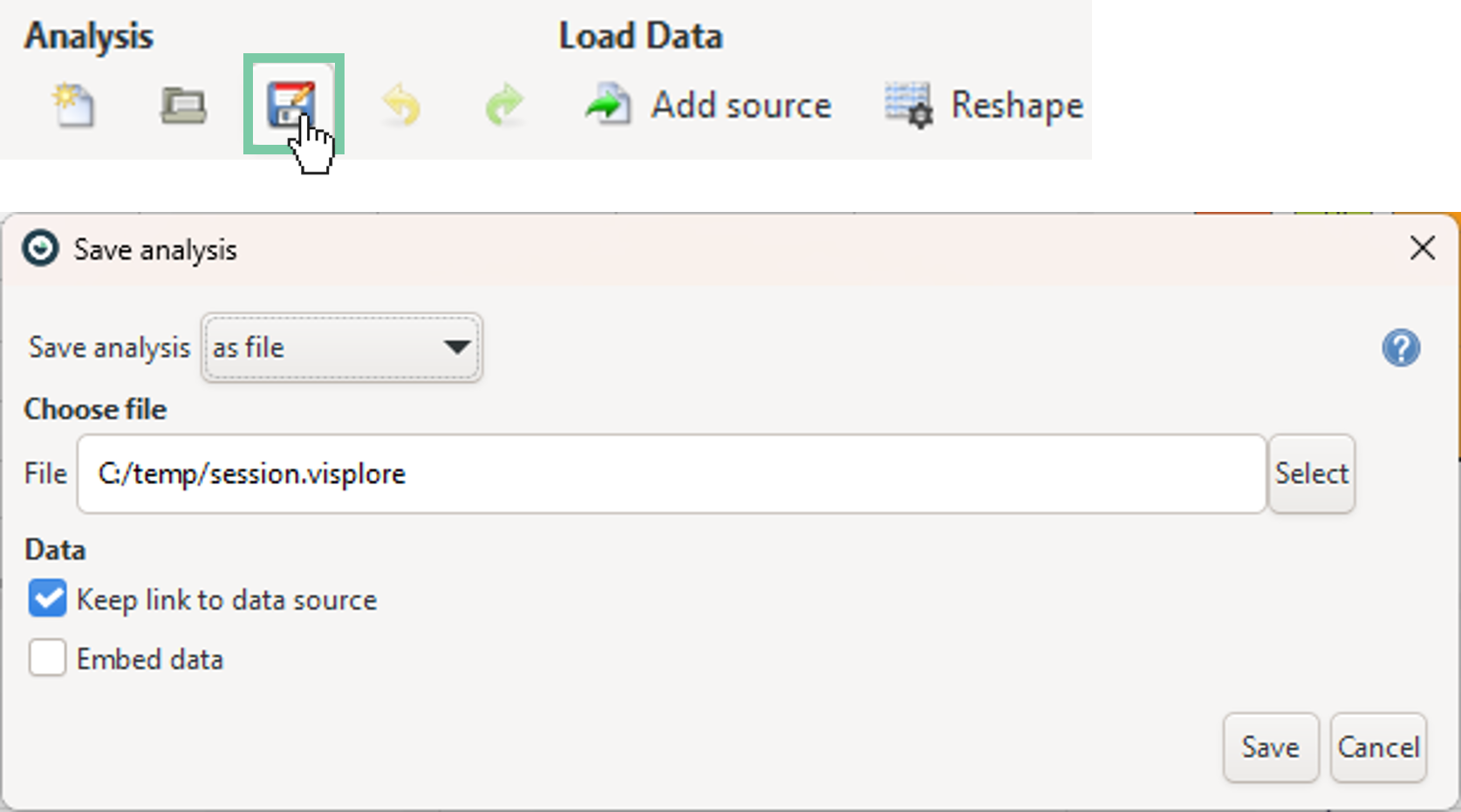
In the dialog, you can choose whether and how the underlying data should be referenced, as well as the location and name of the stored session file.
For now, check only "Keep link to data source" in the "Data" box (leave "Embed data" unchecked - see a description below). Then define where the file should be stored and confirm by clicking "OK".
Keeping a link to the data source makes the file memorize how the data was imported. In our case of the imported Demo CSV file, the absolute path to the file is stored in the session. When loading the session later, the CSV is imported from that link. This is useful for applying the same 'template' configuration to new data. For example, when new records have been added to the file. For other data sources (e.g. databases), the import parameters are also memorized, and can even be adjusted when loading the session.
Note 1 on multiple data sources: You can also save a session while keeping links to multiple data sources with different origins. For example, a session that uses data from a csv, a database and PI System can be saved by keeping the links to the respective data sources. The next time that session is loaded, import parameters will be remembered by Visplore separately for each source. If any of the data sources are not available, you can still continue loading the session with the available sources.
Embedding the data makes the current data table part of the .visplore file. This is useful for passing a complete package to a co-worker who does not need access to the original data source. Also, when you edited the loaded data by cleansing operations in Visplore, embedding is the only option that contains the cleansed data. Note that visplore files with embedded data have larger file size, of course.
Note 2 on multiple data sources: If you choose to embed the data into a session consisting of multiple imported data sources, the next time this session is loaded, you will only see a single data source named "Embedded data".
Now load the previously stored session via the corresponding "Load" button in the Visplore toolbar:
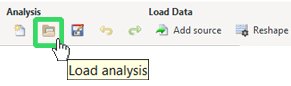
Note: when starting Visplore next time, you can also load Visplore sessions directly from the Welcome Dialog. There, you also find a "Recent files" button, which is handy if you forgot where you saved a file.
When loading the session, you are asked which data the configurations should be applied to:
- Load with embedded data: restores the data embedded in the file. This is only available if the "embed" option was checked during storing the file, and restores the session exactly as it was at time of storing.
- Load with data from original source: loads the data in its actual current state from the referenced source - e.g. the database table, or the csv file, etc. For some sources you can also adjust the query parameters at this point.
- Load with current data: is available if some data had been loaded already. This just applies the configuration to the current data, without loading anything new from data sources. Useful for looking at different cockpits for the same - possibly large - data which would be time-consuming to load again.
- Load with new data import: Import something new before the loaded configuration is applied.
Note that Visplore sessions can also be started by a double click in the file explorer, if Visplore was installed by an installer.
Saving the analysis on the automation server
Saving your analysis on the automation server allows you to easily share it with colleagues and ensure it can be picked up by scheduled automation jobs.
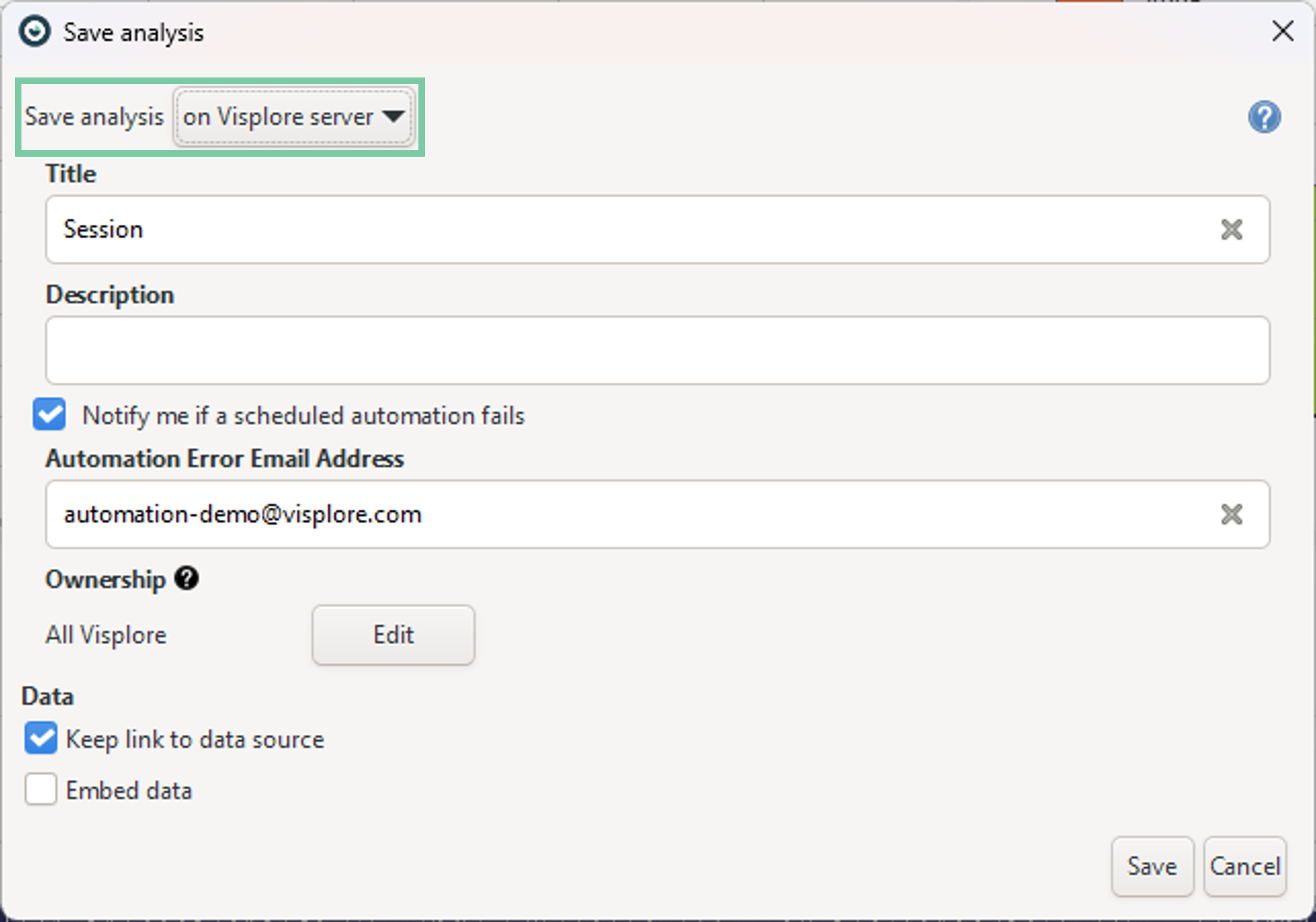
In the dialog, you can:
- Set up notification emails to be informed in case an automation execution fails.
- Specify ownership and permissions. This controls which Active Directory group can open, modify, or delete the session on the server.
Note: If your session includes automated tasks, make sure the client running on the automation server has full access to the required data sources.
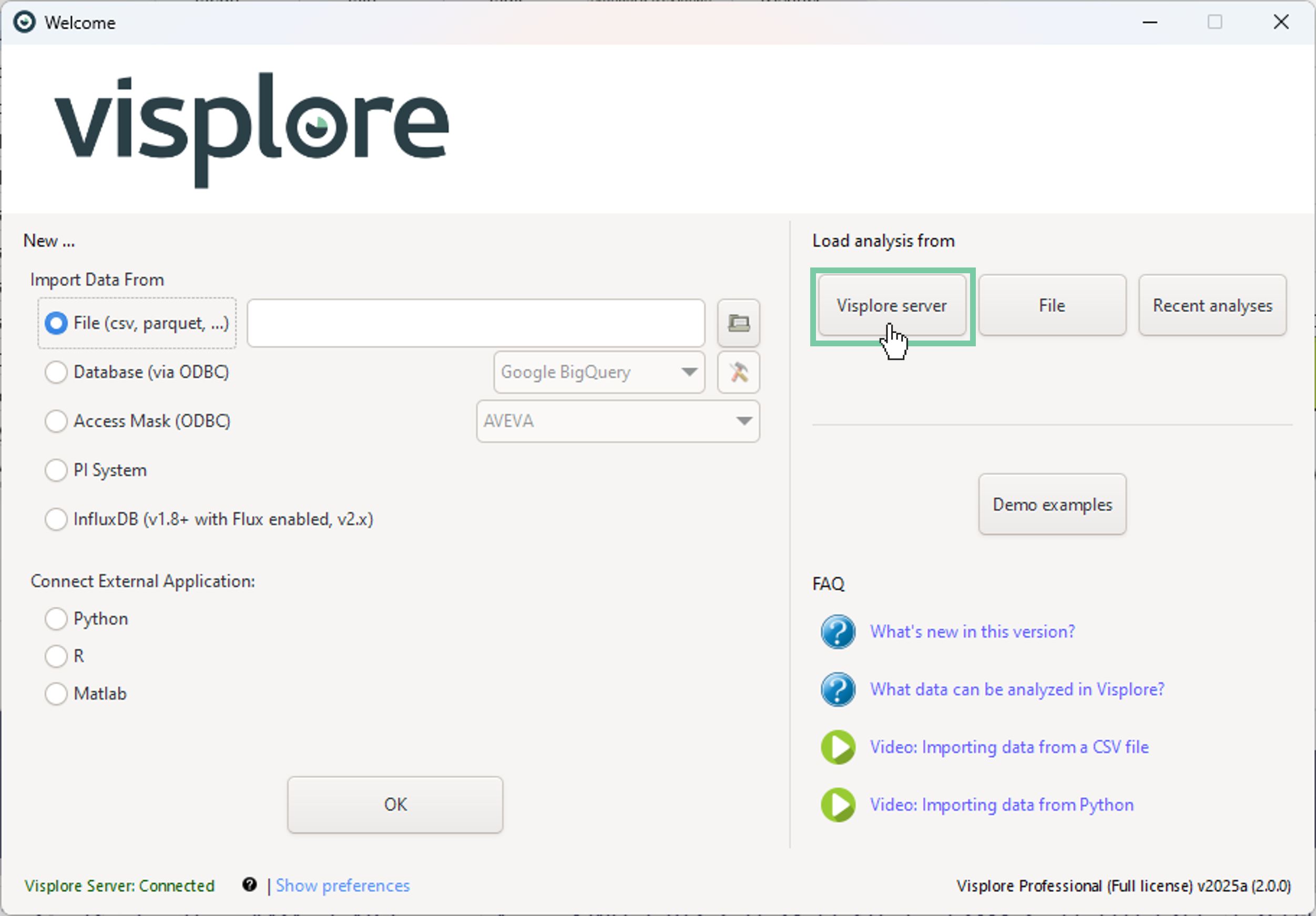
You can load server-hosted sessions directly from the Welcome dialog. This opens a list of all sessions that are shared with your Active Directory group.
Well done! You are now able to store sessions for continuing your analysis later, collaborating with colleagues, and re-applying analysis templates for new data at later points. :)
>> Continue with Next lesson: Visualizing multiple numeric variables
License Statement for the Photovoltaic and Weather dataset used for Screenshots:
"Contains public sector information licensed under the Open Government Licence v3.0."
Source of Dataset (in its original form): https://data.london.gov.uk/dataset/photovoltaic--pv--solar-panel-energy-generation-data
License: UK Open Government Licence OGL 3: http://www.nationalarchives.gov.uk/doc/open-government-licence/version/3/
Dataset was modified (e.g. columns renamed) for easier communication of Visplore USPs.