Root-cause analysis made easy: Systematic comparison of process states in Visplore

Author: Harald Piringer – April, 2022

Many questions in process engineering involve a comparison of process states. This article describes an easy-to-use workflow for explaining process anomalies and assessing the impact of process improvements. Three use cases illustrate the workflow for continuous as well as discrete processes.

Introduction

A key driver in today’s industry is the need to decrease the consumption of energy and natural resources while ensuring the stability of the production process. To this end, companies are investing heavily in sensors along the process chain and enhanced data management. At Visplore, we believe that data-based process optimization is most successful when process experts are empowered to answer complex questions themselves by interacting with this data.

For example, process technologists are frequently challenged to answer questions such as:

  • What is the root cause of an observed process anomaly?
  • Why did the scrap rate increase?
  • What are impact factors on energy consumption and yield?
  • How has a certain intervention affected the process?
  • How does a change of material or machinery affect process stability?

Answering these questions typically requires a detailed examination of numerous process parameters. Due to the increasing number of sensors along the process chain, experience alone is no longer sufficient to quickly identify relevant process parameters. In some cases, hundreds or even thousands of process parameters need to be considered. This would be very tedious and time-consuming with standard monitoring tools. At the same time, a good understanding of the process is necessary to correctly interpret patterns and to derive actions from the insights.

Visplore offers a systematic and easy-to-use workflow in four steps to quickly answer all questions mentioned above. The key feature is to compare user-selected time periods and to automatically identify changes in process parameters. See the short video above to get a first idea.

Example: Root-cause analysis of a process anomaly

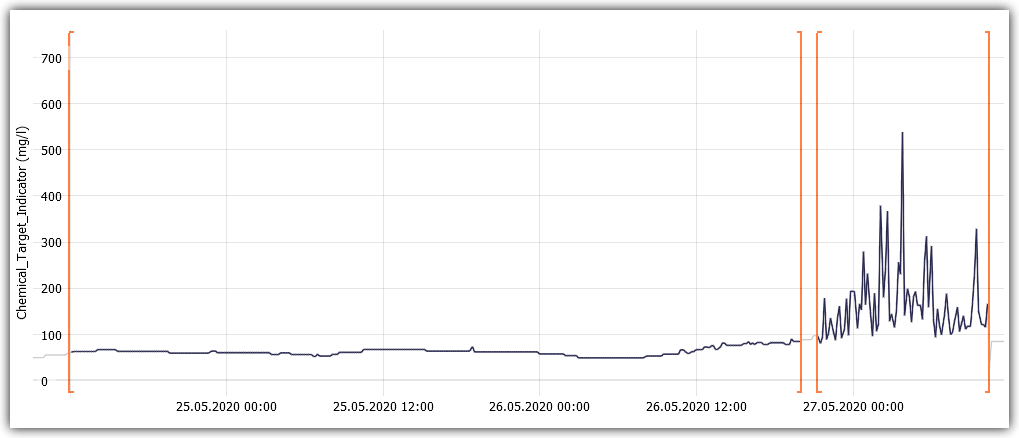
Let’s explain the workflow by an anonymized example from a continuous manufacturing process. A chemical quality indicator showed significant oscillations, although it was expected to stay at a roughly constant level. The goal was to identify the root cause of the anomaly as fast as possible. More than 200 process parameters along the production process were included for generating initial hypotheses. After loading the data for multiple days from the process historian, the quality indicator was visualized in the first Visplore cockpit “Trends and Distributions”.

Step 1: Select time ranges
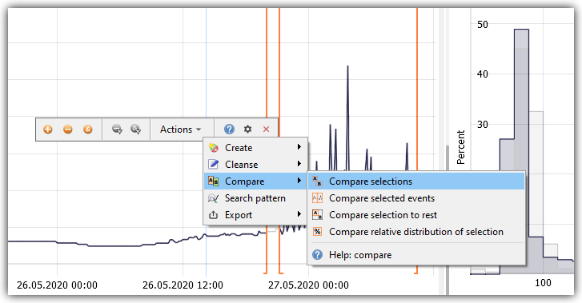
The first step is to specify relevant time ranges. Using two interval selections on the time axis, the process engineers selected approximately 12 hours during the anomaly and – as a baseline for the ‘healthy’ process – 2.5 days just before the anomaly started. Hint: Multiple ranges can be selected using the “+” button.

Using two interval selections on the time axis, the engineers selected a time period before and during the anomaly occurred.

Step 2: Trigger the comparison
The feature “Compare selections” filters out all non-selected data. Furthermore, Visplore automatically configures all views to distinguish the two selected time ranges.

Compare selections option filters out all non-selected data and configures views to distinguish two selected time ranges.

Step 3: Identify changed process parameters
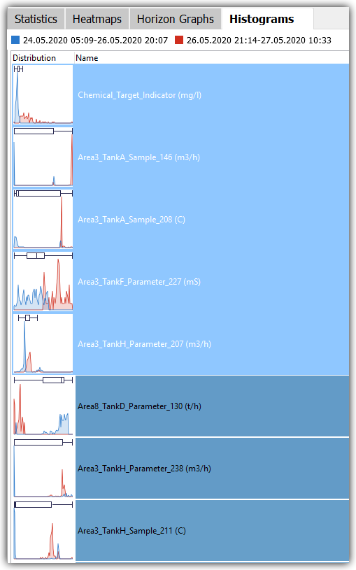
The third step is to identify which process parameters have changed between the compared time ranges. The view “Histograms” orders all process parameters by a statistic that quantifies the (dis-)similarity of the value distribution of the two data selections. In other words: Process parameters at the top of the list show the largest differences in distribution for the time before the anomaly and during the anomaly. This significantly speeds up the identification of possible root causes. In this case, the first entry is the chemical target indicator itself, followed by the process parameters 146 from area 3 and 130 from area 8. Clicking them adds them to the visualization.

Histograms view orders parameters by statistic that quantifies the similarity of the value distribution of 2 data selections.

Step 4: Interpret the results
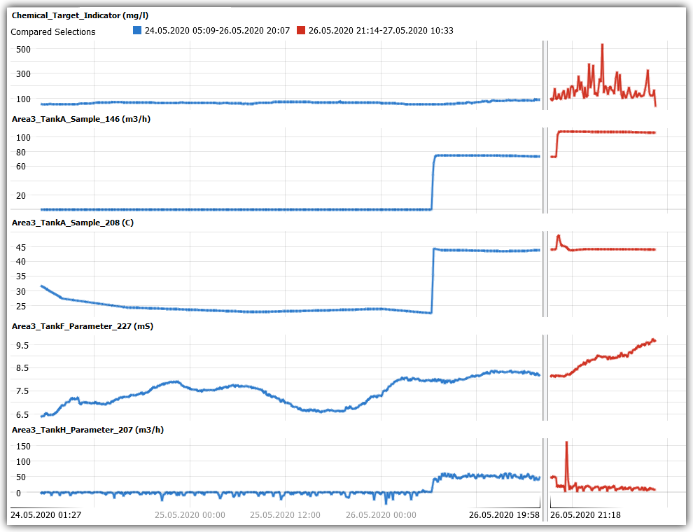
The final step is to interpret the results for selected process parameters, to decide about causal relations based on process knowledge, and to suggest further actions. In this example, the time series plots of the five top-ranked  parameters are displayed. Parameter 146 (second graph) and 130 (third graph) show significant changes of their levels some time before the anomaly started, for example. While the process experts found area 8 as very unlikely to cause the problem, area 3 was considered a potential source of the anomaly.

The time series plots of the five top-ranked parameters are displayed.

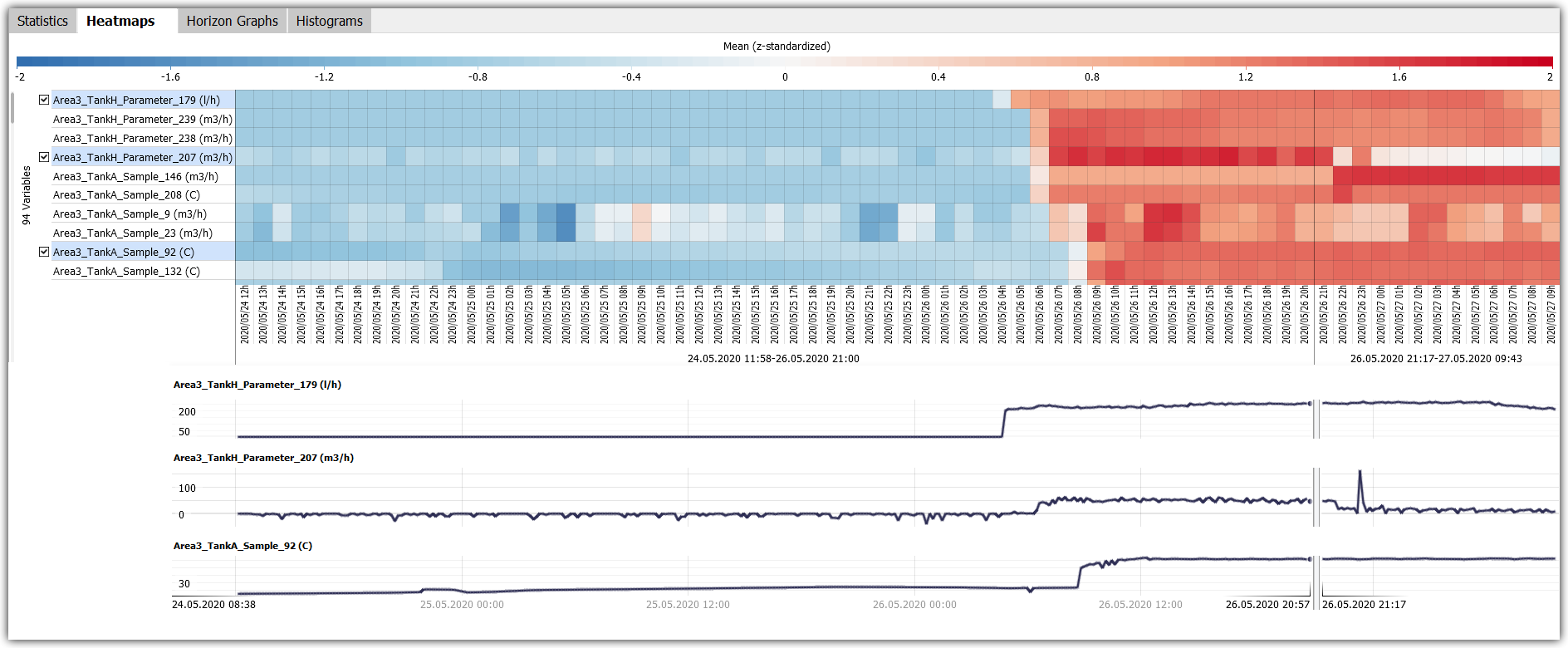
The tab “Heatmaps” provides an overview of the process parameters from area 3. The color indicates hours with high (= red) or low (= blue) average values per process parameter (= rows). This visualization shows a sudden rise of multiple process parameters of area 3, but at different points in time. This overview thus makes it easy to trace the pattern across process parameters and to identify sensors where the leap occurred early, narrowing down the search of root causes.

Several sensors of a process area jumped one by one several hours before the beginning of the anomaly.

Several sensors of a process area jumped one by one several hours before the beginning of the anomaly (indicated by the transition from blue to red).

This workflow made it possible to identify suspicious process parameters within minutes and to decide on possible causal relations in the context of the other sensors. The identified potential root causes can thus be checked in a targeted manner and the cause of the process instability can be eliminated quickly.

Benefits: Easy and unbiased root cause analysis

The described comparison workflow has several major advantages over classical trial-and-error search for potential problem causes:

  • No initial hypotheses required: In contrast to classical approaches to root-cause analysis, the unbiased search does not require experts to come up with hypotheses about relevant process parameters upfront based on their (potentially biased) expectations.
  • Find unexpected co-occurrences: Thanks to the scalability for up to thousands of process parameters, even unsuspected co-occurrences of patterns can be easily identified without additional effort.
  • Just-in-time usage: The workflow does not require any data modeling, and can be applied immediately to any type of time series.
  • Ease of use: The workflow requires only a few clicks and is standardized, leading to massive time savings without extensive training.
  • Robustness: The workflow is applicable to continuous as well as discrete process data. Having data visualization as a key element for both, getting the “big picture” as well as for a detailed analysis, it is also robust for finding co-occurring patterns of any kind.
  • Expert in the loop: While the automated search saves much time, the process expert still stays in the loop to assess the results and decide about causal effects or mere coincidence.

Second use case example: Analyzing an increase of scrap

The second example illustrates the application of the comparison workflow to a recurring issue in discrete manufacturing, namely finding reasons of increased scrap rates. The example stems from a foundry where a die casting process is used to produce the same type of component over a long period of time. Around 250 process parameters are recorded for each produced piece. In addition, the data contains information about how many pieces were scrap, and for which reason.

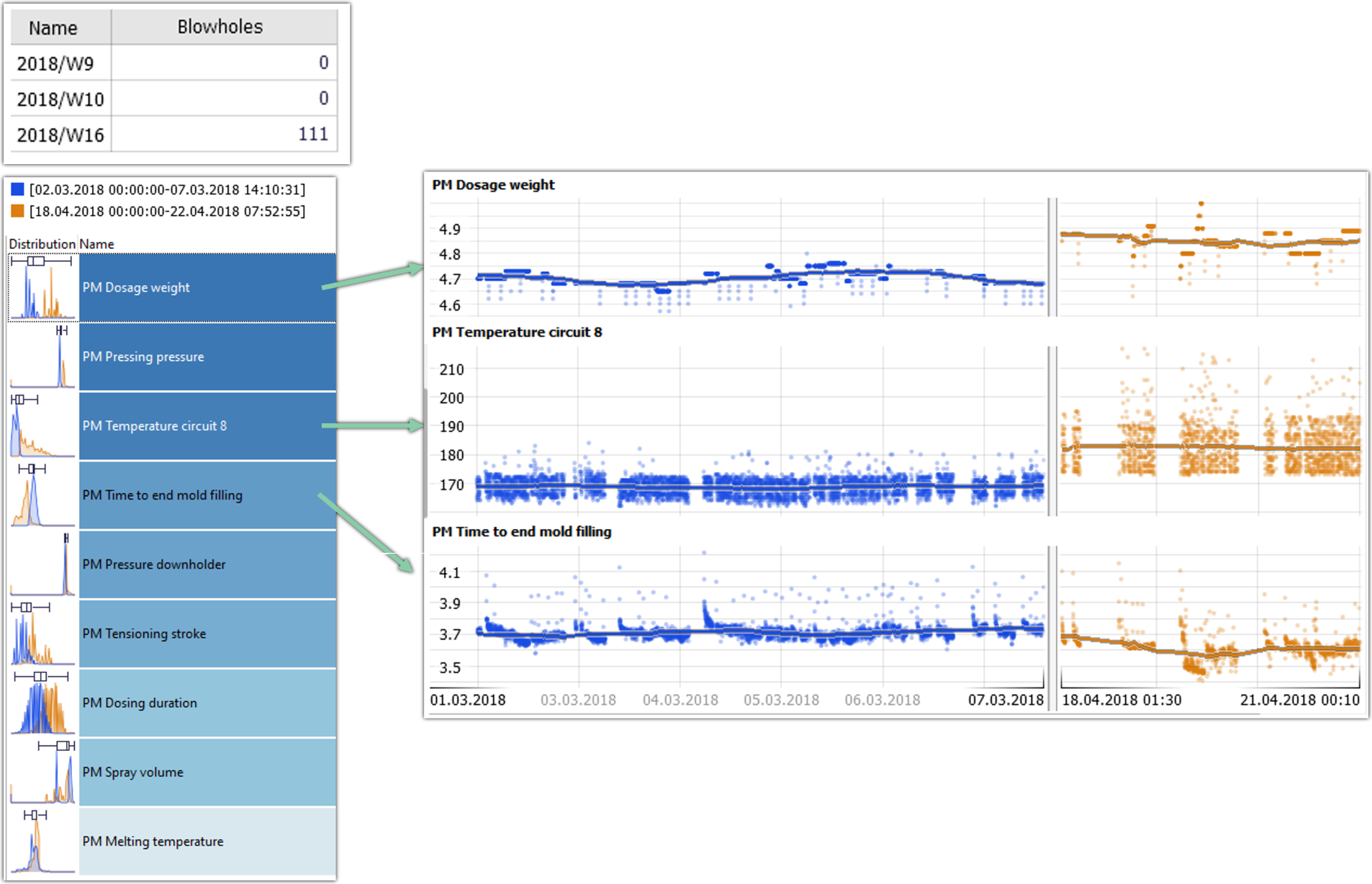
Finding changed process parameters causing increased scrap production.

Finding changed process parameters causing increased scrap production.

The figure shows that the number of blowholes, a specific reason for scrap, increased significantly from 0 to 111 for calendar week 16 compared to a few weeks before. Step 1 of the workflow is to select the time periods that should be compared. In this case, these are times with no and with high scrap rates, respectively. After using the feature “Compare selections” (step 2, not illustrated), the identification of deviations in process parameters (step 3) is now simply based on ordering all process parameters by differences in their value distribution for the two compared time periods. This overview already shows that Dosage Weight, Temperature in circuit 8, and some other process parameters have different levels. The detailed analysis (step 4) shows for three process parameters how they changed over time. For example, the Dosage Weight and the Temperature in circuit 8 were increased by the operator while the timing for filling the mold was decreased. Within seconds, process technologists get insights that enable them to derive measures to effectively mitigate scrap.

Third use case example: Assessment of an equipment upgrade

The final example illustrates the workflow for answering another recurring question: analyzing effects of a process upgrade or process intervention. In this case, the data is from a hydropower plant where modification work at the hydroturbine had been carried out.

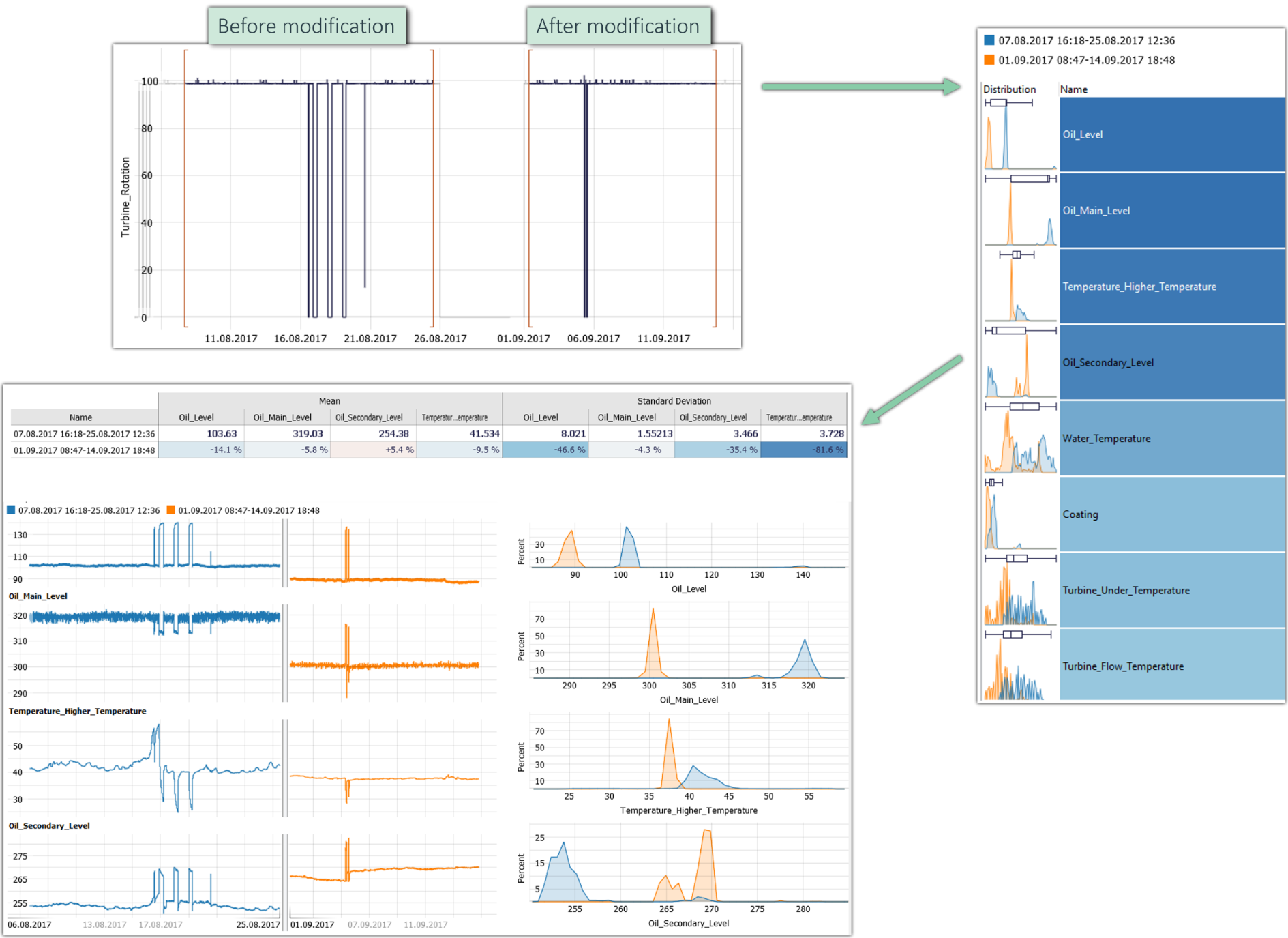
Comparing process characteristics before and after an upgrade.

Comparing process characteristics before and after an upgrade.

After selecting the periods before and after the modification, the sorted histograms once more allow to quickly identify which process variables have significantly changed. The most obvious effect in this case was a change in the oil levels followed by a decrease in oil temperature indicating the friction levels have been effectively reduced. In addition to the time series visualization, the figure also shows ways to quantify the change in characteristics statistically. The pivot table in the upper part compares the mean values and standard deviations of the two time periods and displays the percentual changes. Not shown here: For further statistical testing, the histogram view offers to display the results of a t-test for equality of the means and a chi-squared test for the equality of the standard deviations.

Tips and advice

The described comparison workflow enables a wide range of questions to be answered efficiently. However, a few aspects need to be considered.

  • Avoid comparing apples and oranges: Known differences between time periods should be taken into account. For example, it is typically necessary for root-cause analysis to restrict the comparison to time periods in which key aspects such as the final product are identical. For this purpose, it helps to use Visplore’s filter function.
  • Assess quantitative as well as qualitative aspects: It is common to compare quantitative statistics such as mean values and to perform statistical tests. In many cases, standard statistics already reveal significant differences between the periods compared. Oftentimes, however, a qualitative look at patterns provides essential insights without having to commit to potentially relevant statistics in advance. Overviews such as heatmaps of all process parameters are very helpful for this purpose, as they facilitate spotting any kind of patterns.
  • Be careful about the term “correlation”: Colloquially, the term correlation is often used for patterns that occur “together” (possibly even causally related) – but with a slight temporal delay, or quite different shape. Statistical measures of correlation such as Pearson’s Coefficient and Spearman’s Rank Coefficient are more narrowly defined and indicate how strongly (linear) increases in one variable are reflected by simultaneous (!) increases in another variable. Co-occurrence of more complex patterns is not captured by usual statistical measures of correlation. In this respect, the described Compare methodology can provide hypotheses about relations that would not be detectable by classical statistical correlation measures. Therefore, the described workflow in Visplore is a more general approach to detecting co-occurring patterns than, for example, using the Correlations Cockpit.
  • Analysis of multiple time ranges and recurring anomalies: The focus in this article was on comparing two time periods. For many questions, more than two time periods need to be compared to each other, for example multiple process settings. This can easily be accomplished using the same workflow by selecting multiple time periods with “+”. Very often, however, it is necessary for a root-cause analysis to compare multiple anomalous time periods or other types of events with the time periods before. Visplore offers easy-to-use tools for this purpose as well. We will dedicate a subsequent article to this topic.

Conclusion

Many practical questions in process optimization and root-cause analysis can be addressed by comparing time periods. Visplore offers an easy-to-use, systematic workflow in four steps for this purpose. This workflow enables identifying changes in numerous process parameters robustly and without requiring prior hypotheses while keeping the process experts in the loop.

A step-by-step guide for training this feature can be found in our online documentation.

Note: This feature is available in all versions of Visplore, including Visplore Free.

So you can experience it right now by requesting a free trial.

About the author

Harald Piringer studied informatics at the Vienna University of Technology and finished his PhD in 2011. For more than 10 years, Harald Piringer was the head of the Visual Analytics group at the VRVis research center in Vienna / Austria, where he did applied research in close collaboration with partners from industry, energy, healthcare, and other sectors. Harald Piringer (co-)authored more than 30 international publications in the fields of data visualization and visual analytics. In 2020, he co-founded the Visplore GmbH as its CEO.

Newsletter

Stay up to date on new developments around Visplore. Subscribe to never miss new blog posts!