Visplore – your pocket knife for CSV files

Author: Max Blöchle – November, 2022

CSV files are among the most common data sources when starting a project – be it a file received from a customer, an export from an operational database, or a folder full of regularly written files from a continuous process. For all these cases, Visplore is your pocket knife to turn CSV files into valuable insights and reports within minutes!

Visplore’s CSV import functionality is among the most streamlined data connectors you will find out there: automatic detection of formats, types and comment lines, row headers from multiple lines, sampling for loading really big datasets, or just combining date and time information from separte columns – all this is easily done using an import wizard.

Today’s blog focuses on three less obvious, but often requested workflows with CSV files – hoping to bring a significant efficiency boost to your daily work!

Importing multiple CSV files at once

Two common use cases for importing multiple CSV files are:

  1. each file contains timeseries data for additional periods for the same asset (e.g., one file per day, for the same machine)
  2. each file contains timeseries data for a different asset, but in the same structure (e.g., one file per machine. The file name may contain the name of the machine.)

In Visplore, you can

  • select a set of specific files to load at once
  • alternatively, you can load all similar files from a folder at once, optionally filtered by modification date (also see the Visplore documentation of CSV files). This is useful for building dashboards for regular use on the latest data.

In both cases, Visplore appends the lines of the files below each other. For this reason, the columns and types must be the same in each file.

The following video shows how to load multiple CSV files for additional periods.

The CSV file name is available as a categorical column in Visplore and can be used for coloring and more. This category is helpful to distinguish assets if the filename is the only clue to which asset the data belongs.

In many cases, this on-the-fly data combination can save time and effort otherwise spent on manual preparation.

Rasterizing and transposing with pivot tables

IoT sensor data often comes as CSV files in a long table format: time resolution may be different for each sensor, and an extra column distinguishes names of sensor/asset. Visplore can be used for data in long formats, as described here. However, some types of analysis – like statistical correlation or regression – require the data to be transformed first:

  1. Aliging time rasters: e.g. rasterizing unregular events to a common 1-hour raster for all columns.
  2. Transposing tables from ‘long format’ (assets as categories) to a ‘wide format’ (assets as columns), in order to correlate them.

Use Visplore’s Pivot Table to transpose and rasterize data. Configure how you want your data to be, and export it for further analysis. Follow these steps, as also demonstrated in the video below:

  1. Pick an aggregation level for the rows in your pivot table, e.g., Year/Month/Day/Hour for hourly resolution.
  2. Select the method you want to use for aggregating, e.g., the mean value per hour.
  3. Select the data attributes you want to have as columns in your resulting pivot table.
  4. Optionally differentiate your columns by categories, such as, e.g., ‘machine 1’ and ‘machine 2’ (long to wide format).
  5. Finally, export the pivot table to the clipboard or a file. You can also directly load it in a new Visplore instance.

Why would I transform a table to a wide format? For correlation or regression analyses, you must have the values of the correlated columns in the same row so that it is clear what belongs together in time.

What is the benefit of rasterizing events to a regular raster? Some analyses in Visplore (like Pattern search) only work for regular rasters. Also, a common time raster may be necessary for merging a table with another, e.g., in Excel.

Importing events with vector-valued data attributes Pro

Tables loaded in Visplore can not only hold single values per cell, but whole vectors of numerical values, like a signal over time, a curve, or a spectrum. This information can be visualized and correlated with other data attributes, to support multiple use-cases.

  1. Labeling machine operations (e.g., anomalies, good vs. bad batches, …)
  2. R&D: correlate design parameters of experiments or simulation runs with time-dependent results (e.g., curves)
  3. Predictive quality: correlate quality measurements and a categorical context with process curves (e.g., from an industrial foundry)

Working with curves is possible in Visplore Professional and requires a particular CSV file structure:

  • Load a CSV file of events, e.g. one row per event/experiment/simulation run. We call this the ‘master table’. This file can hold references to additional csv files holding the vector-valued attributes.
  • In Visplore, load the master table the same way you usually load CSVs. The ‘Multivariate Drill-Down’ cockpit can visualize the curves.
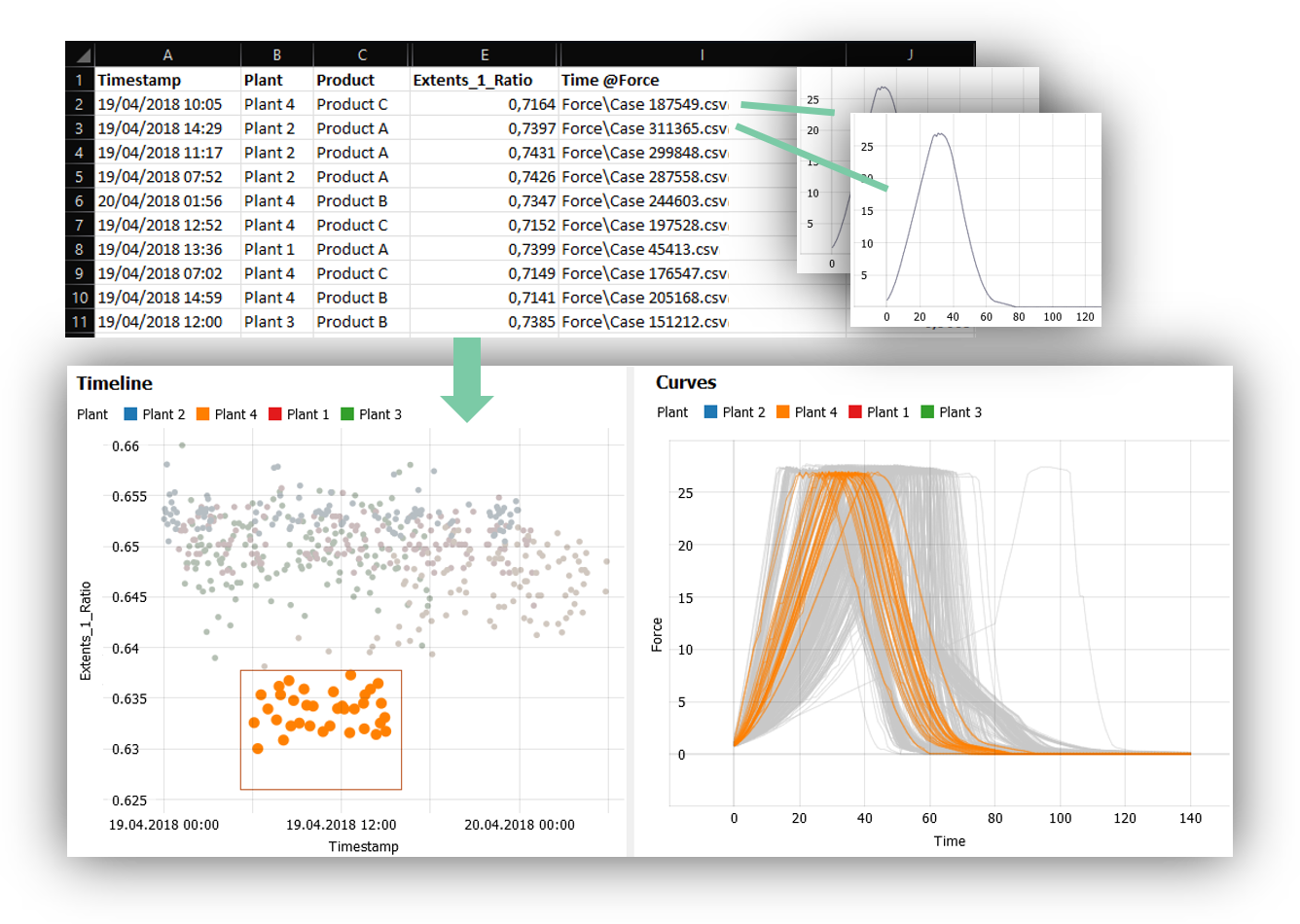
  • Select curves or points to relate them with each other and generate insights, as shown in the image below:

Importing Curves from CSV files

The image above shows how a selection of events in the Timeline highlights the corresponding press curves, and shows that all events come from Plant 4, and mostly Product C.

Alternatively to importing CSV files consisting of a master table and referenced extra files, you can import events with vector-valued data attributes from Python and Matlab:

The unique data model of curves is appreciated by many Visplore users. It enables correlating large numbers of patterns with other information, explaining pattern clusters, and labeling patterns for downstream tasks. Are you interested in trying this for your data?

You can also mix and match the above-described functionalities! Use the rasterizing to convert two separate tables into a common, e.g., hourly raster. Then export the resulting tables for the same month and combine them in, e.g., Excel. The resulting file can then be analyzed in Visplore.

We hope this blog post was helpful for you and inspired some new ways of visploring your CSV files!

About the author

Max Blöchle has been working in energy and R&D for the last 20 years. With his background in IT, he has specialized in data science to optimize the reliability and efficiency of systems. With his experience, he trains and supports domain experts on innovation topics such as no-code data analytics and digitalization.

Newsletter
Stay up to date on new developments around Visplore. Subscribe to never miss new blog posts!